
WebP vs JPG vs PNG: Which Image Format Is Best for Websites?
The image format you choose can affect how quickly your website loads. Some formats are better suited to photographs, while others work well for transparent graphics, logos, and illustrations.
If you want your website to load faster and deliver images more efficiently, start by understanding the differences between WebP, JPG, and PNG.
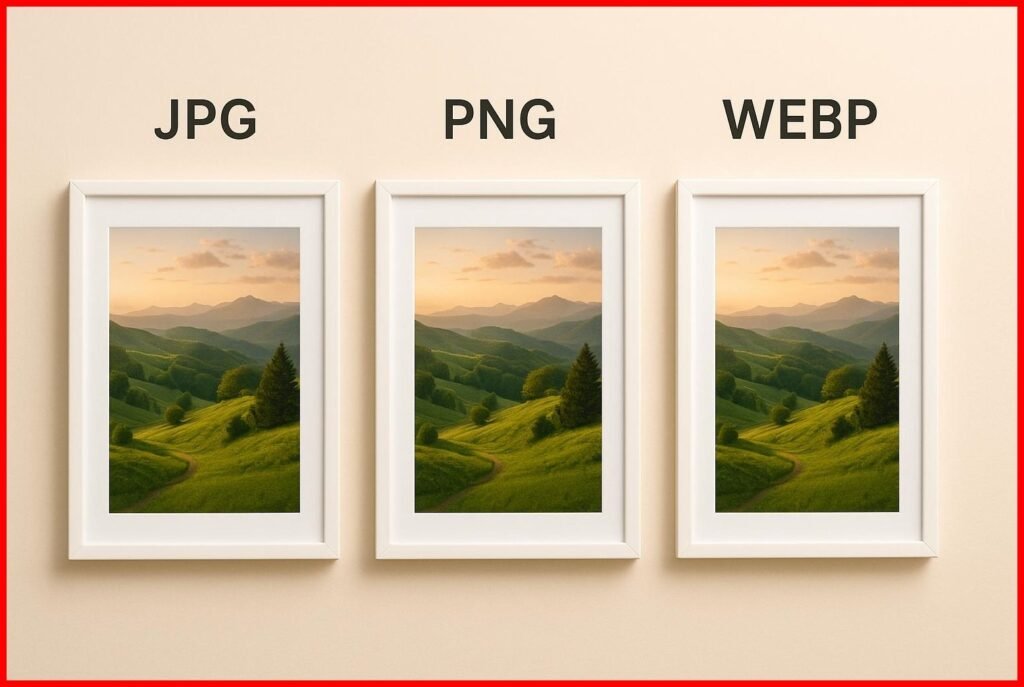
This article compares these three popular image formats and explains when to use each one.
What Is JPG?
JPG, also called JPEG, is one of the most widely used image formats. It uses lossy compression, which reduces file size by removing some image data.
Advantages of JPG
- Works on virtually all modern browsers and devices.
- Suitable for photographs and complex images.
- Allows you to adjust the compression level.
- Often creates relatively small files for photographs.
Disadvantages of JPG
- Repeatedly editing and saving a JPG can reduce image quality.
- Does not support transparency.
- Heavy compression can create visible artifacts around edges and fine details.
When Should You Use JPG?
JPG works well for photographs, blog images, and website banners, especially when broad compatibility is important.
What Is PNG?
PNG uses lossless compression and supports transparency. It is a good choice for graphics that need crisp edges or transparent backgrounds.
Advantages of PNG
- Preserves image data through lossless compression.
- Supports transparent pixels.
- Works well for many interface graphics, diagrams, and screenshots.
- Keeps edges sharp in suitable graphics.
Disadvantages of PNG
- Photographs can have much larger file sizes than they do in lossy formats.
- Large files can slow down web pages if they are not optimized.
- It is not the most efficient choice for every image.
When Should You Use PNG?
Choose PNG when you need transparency, lossless quality, or crisp graphic details. For many photographs, compare PNG with WebP, AVIF, or JPEG to find a more efficient option.
What Is WebP?
WebP is a modern image format designed for efficient compression. It supports both lossy and lossless compression, as well as transparency and animation.
Advantages of WebP
- Often creates smaller files than comparable JPEG or PNG images.
- Supports transparent backgrounds.
- Offers both lossy and lossless compression.
- Is supported by modern web browsers.
Disadvantages of WebP
- Some older software and specialized workflows may require image conversion.
- Conversion settings can affect visual quality.
- Not every WebP image will be smaller than its original version, so testing is important.
When Should You Use WebP?
WebP is a good all-purpose option for website images, including photographs, illustrations, and many transparent graphics. It can help reduce file sizes without noticeably affecting visual quality when the right settings are used.
WebP vs JPG vs PNG: Quick Comparison
The following table highlights the main differences between these three image formats.
| Feature | WebP | JPG | PNG |
|---|---|---|---|
| Lossy compression | Yes | Yes | No |
| Lossless compression | Yes | No | Yes |
| Transparency | Yes | No | Yes |
| Best use | General web images | Photographs | Transparent graphics |
| Typical file size | Often small | Often small for photos | Often larger for photos |
| Browser support | Modern browsers | Very broad | Very broad |
Actual file sizes vary depending on the image, its dimensions, the compression method, and the quality settings. Always compare the results before choosing a format.
Which Format Is Best for Website Speed?
There is no single best format for every image. WebP is a useful starting point for many website images because it often reduces file size while preserving good visual quality.
- For photographs: Compare WebP with JPEG or AVIF.
- For transparent graphics: Compare WebP with PNG.
- For logos and icons: Consider SVG when the artwork is vector-based.
- For lossless image quality: Consider PNG or lossless WebP, depending on the image.
Choose the format that offers the right balance of visual quality, compatibility, transparency, and file size. Resizing images and using suitable compression are also important for website performance.
How to Convert Images to WebP
Converting images to WebP can be a practical way to reduce image file sizes. Follow these steps to get started:
- Choose the image you want to optimize.
- Keep a backup of the original image.
- Use a reliable image conversion tool to create a WebP version.
- Compare the original and converted images to check visual quality.
- Check the new file size to confirm that the conversion provides a benefit.
- Upload the optimized image to your website.
- Test the page on desktop and mobile devices.
If the original image contains transparency, make sure the background remains transparent after conversion. Avoid replacing an image if the converted version looks noticeably worse or produces a larger file.
For additional image compression and optimization resources, visit us.compressimagefree.store/.
Does Image Format Affect SEO?
Image format can affect file size, which influences how much data visitors need to download. More efficient formats can help pages load faster and contribute to a better browsing experience.
However, search visibility also depends on other factors, including content relevance, accessibility, page quality, and technical SEO.
To improve image SEO, follow these practices:
- Use descriptive filenames that explain the image content.
- Add meaningful alternative text to informative images.
- Resize images to appropriate display dimensions.
- Compress images without sacrificing necessary visual quality.
- Use relevant text around images when it helps explain the content.
- Make sure important images can be discovered and accessed by search engines.
Final Verdict
WebP is a good option for many modern websites because it supports transparency and can compress images efficiently. JPG remains useful for photographs and broad compatibility, while PNG is a strong choice for transparent graphics and lossless quality.
Rather than converting every image automatically, test different formats and choose the one that works best for each image. The right combination of image format, dimensions, and compression can help your website deliver a faster and smoother experience.
At us.compressimagefree.store/, we help you understand image formats and discover practical ways to build faster, more efficient websites.